Document Designer
The Document Designer lets you create and customize PDF document templates without writing any code. A structured form controls every aspect of the layout, and a live preview shows changes instantly. Navigate to Document Designer in the main menu.
Creating Your First Template
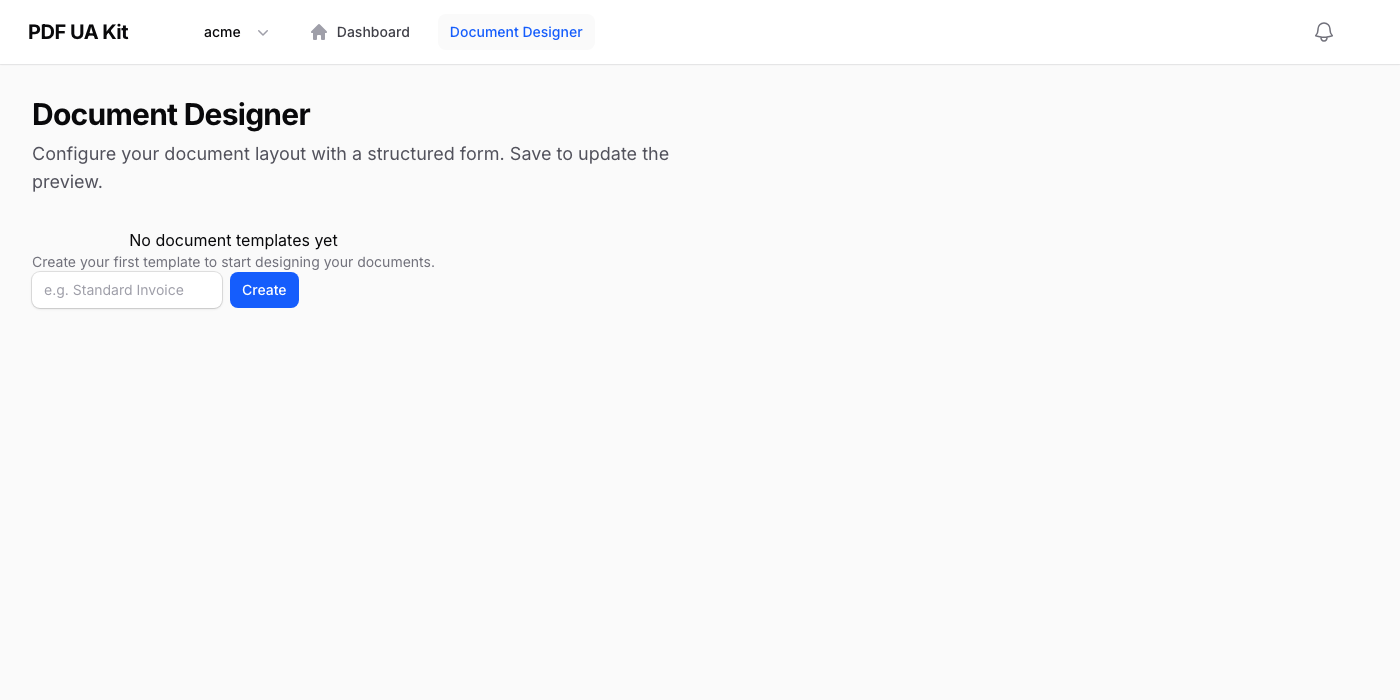
If no templates exist yet, the designer shows an empty state with a text field. Enter a name (e.g. "Standard Invoice") and click Create to get started. The template is pre-filled with sensible defaults that you can adjust across ten tabs.
Template Management
The toolbar at the top lets you:
- Switch templates — Use the dropdown to select a different template.
- New Template — Create an additional template from defaults.
- Save — Persist your changes and refresh the preview.
- Set as Default — Mark the current template as the default for new documents.
- Delete — Permanently remove the template (requires confirmation).
The first template is automatically marked as the default (shown with a star icon).
Defaults
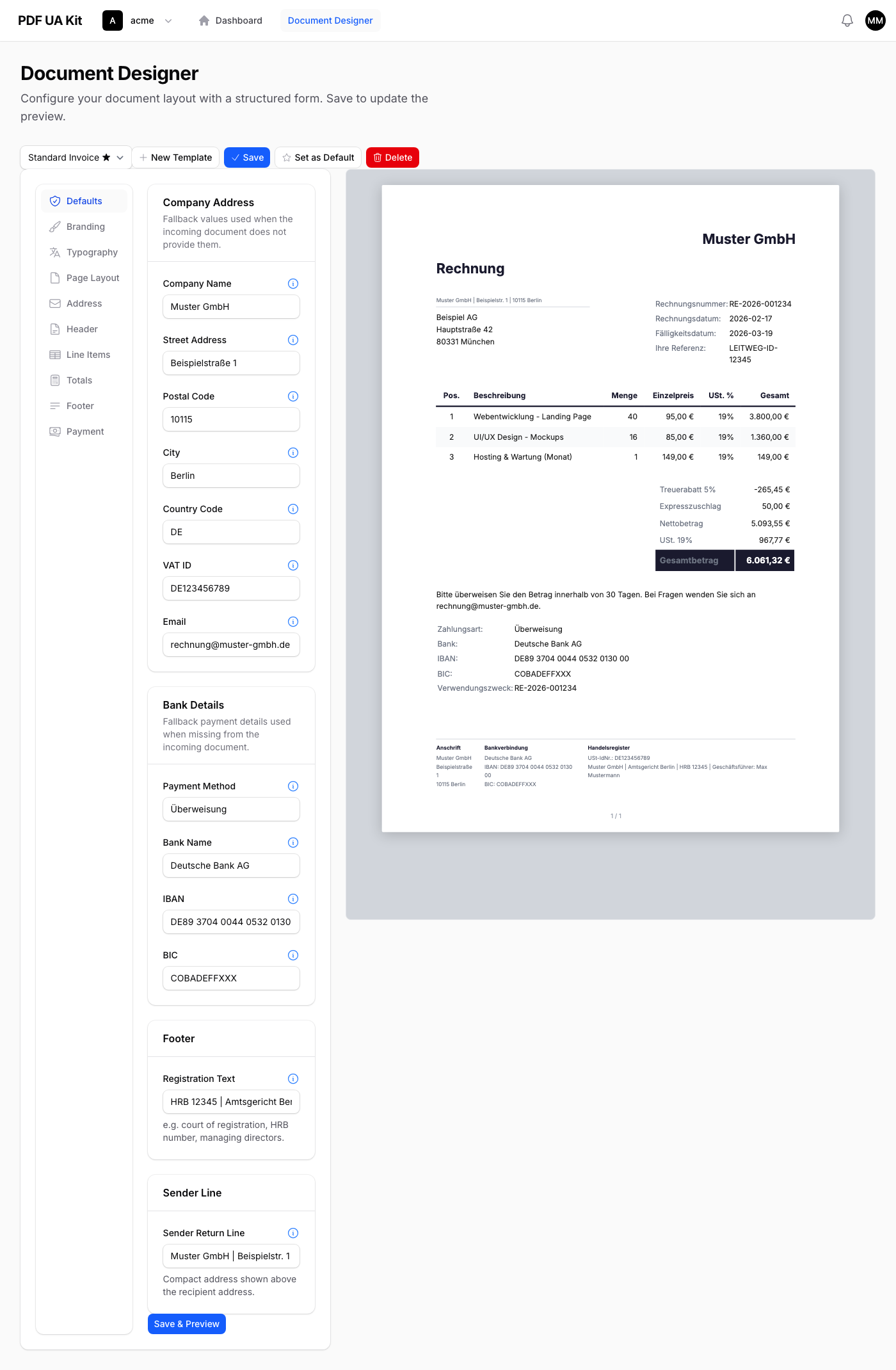
The Defaults tab holds fallback values used when the incoming document data doesn't provide them. This is useful when you always send invoices from the same company — fill in your address, bank details, and registration info once, and every document will use them automatically.
- Company Address — Name, street, postal code, city, country code, VAT ID, and email.
- Bank Details — Payment method, bank name, IBAN, and BIC.
- Footer — Registration text such as court of registration and HRB number.
- Sender Line — Compact sender address displayed above the recipient (e.g. "Acme GmbH | Main St. 1 | 10115 Berlin").
Each field has a tooltip (hover the info icon) explaining where it appears on the document.
Branding
Control the visual identity of your documents.
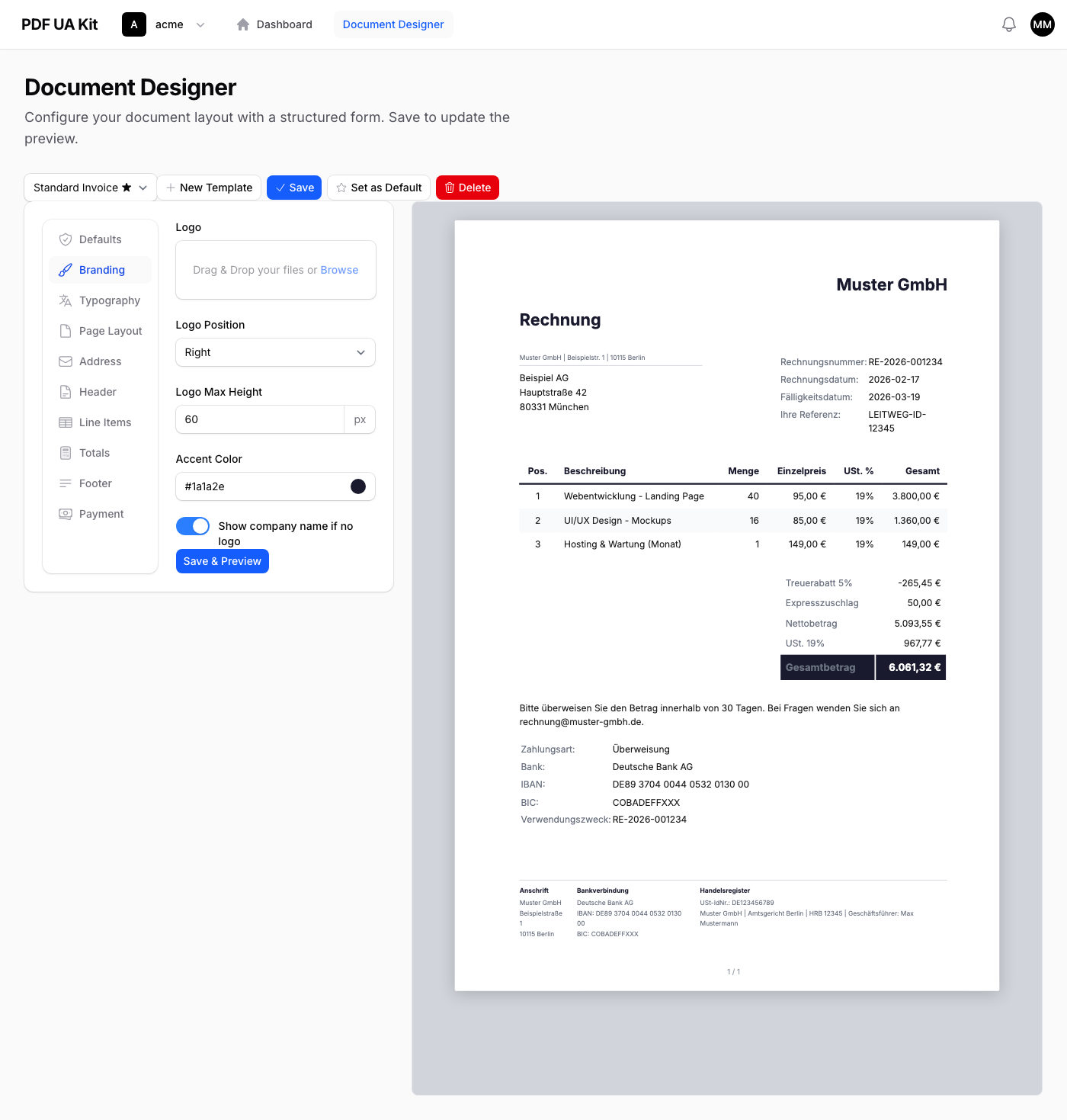
- Logo — Upload an image (max 1 MB) displayed in the document header.
- Logo Position — Left, center, or right alignment.
- Logo Max Height — Constrain the logo height between 20 and 120 px.
- Accent Color — Used for table headers, footer labels, and the highlighted total row.
- Company Name Fallback — Shows the company name in the header when no logo is uploaded.
Typography
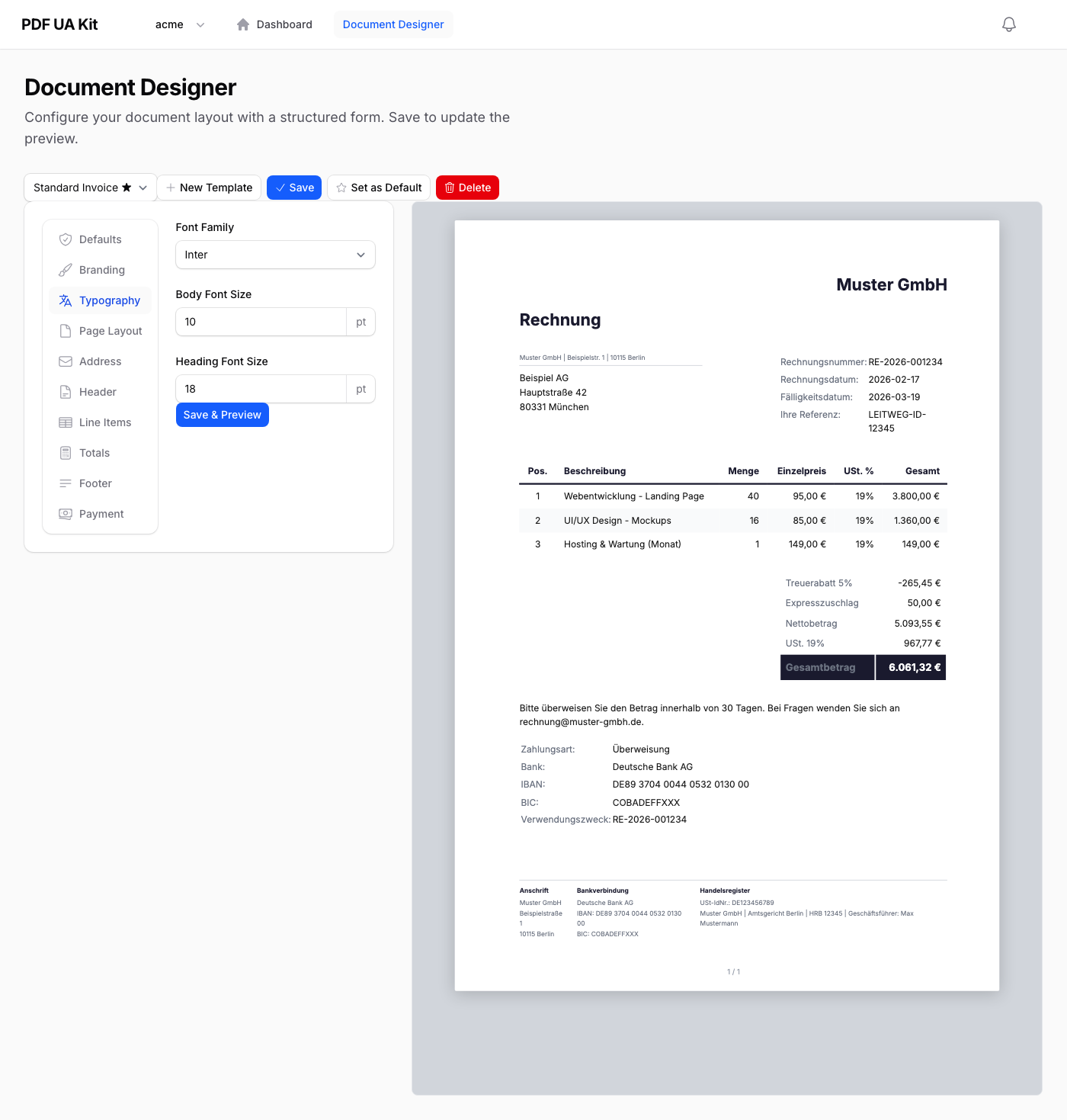
Choose from 17 bundled fonts — including Inter, Roboto, Source Sans 3, Merriweather, Playfair Display, and JetBrains Mono. All fonts are embedded in the PDF for consistent rendering.
- Font Family — Select from serif, sans-serif, and monospace options.
- Body Font Size — Main text size (8–14 pt).
- Heading Font Size — Document title size (12–28 pt).
Page Layout
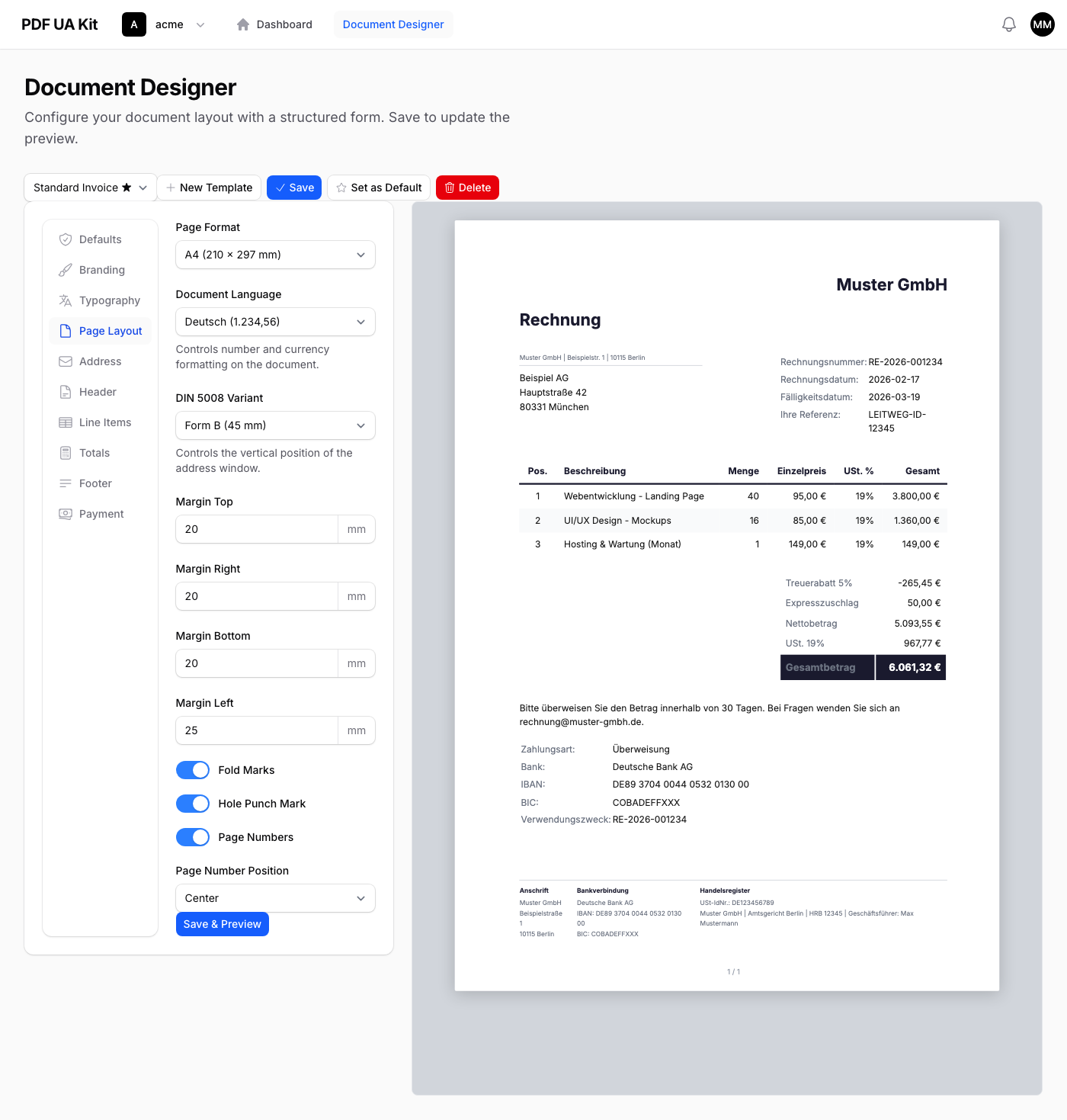
Configure the physical page, margins, and DIN 5008 compliance options.
| Setting | Description |
|---|---|
| Page Format | A4 (210 x 297 mm) or US Letter (216 x 279 mm) |
| Document Language | Controls number and currency formatting (German, English US/UK, French) |
| DIN 5008 Variant | Form A (27 mm) or Form B (45 mm) — sets the address window position |
| Margins | Top, right, bottom, and left (0–50 mm each) |
| Fold Marks | Fold lines for standard DIN long envelopes |
| Hole Punch Mark | Center perforation mark for binder filing |
| Page Numbers | Toggle and position (left, center, or right) |
Address & Header
- Sender Return Line — A small sender address above the recipient per DIN 5008 convention.
- Recipient Position — Place the recipient address on the left or right side.
- Document Title — The main heading (e.g. "Invoice", "Rechnung").
- Intro Text — Optional text displayed below the title and metadata.
Line Items
Configure how the product/service table is displayed.
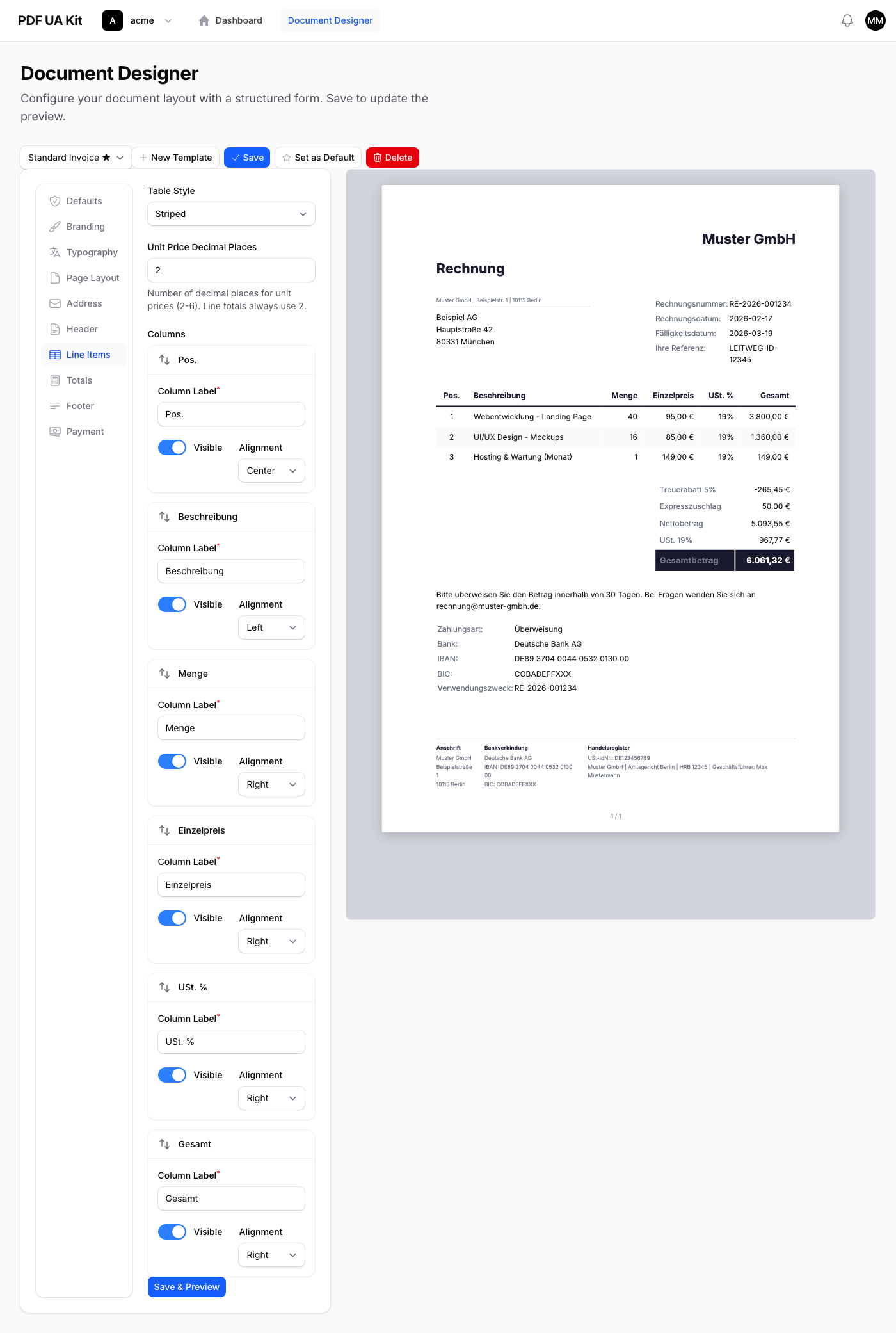
- Table Style — Striped (alternating rows), Bordered (full grid), or Minimal (header underline only).
- Unit Price Decimals — 2 to 6 decimal places for unit prices. Line totals always use 2.
- Columns — Reorder, rename, show/hide, and set alignment for each column (Position, Description, Quantity, Unit Price, VAT %, Total).
Totals, Footer & Payment
- Highlight Grand Total — Applies the accent color background to the total row.
- Discounts & Surcharges — Toggle display of allowances and charges.
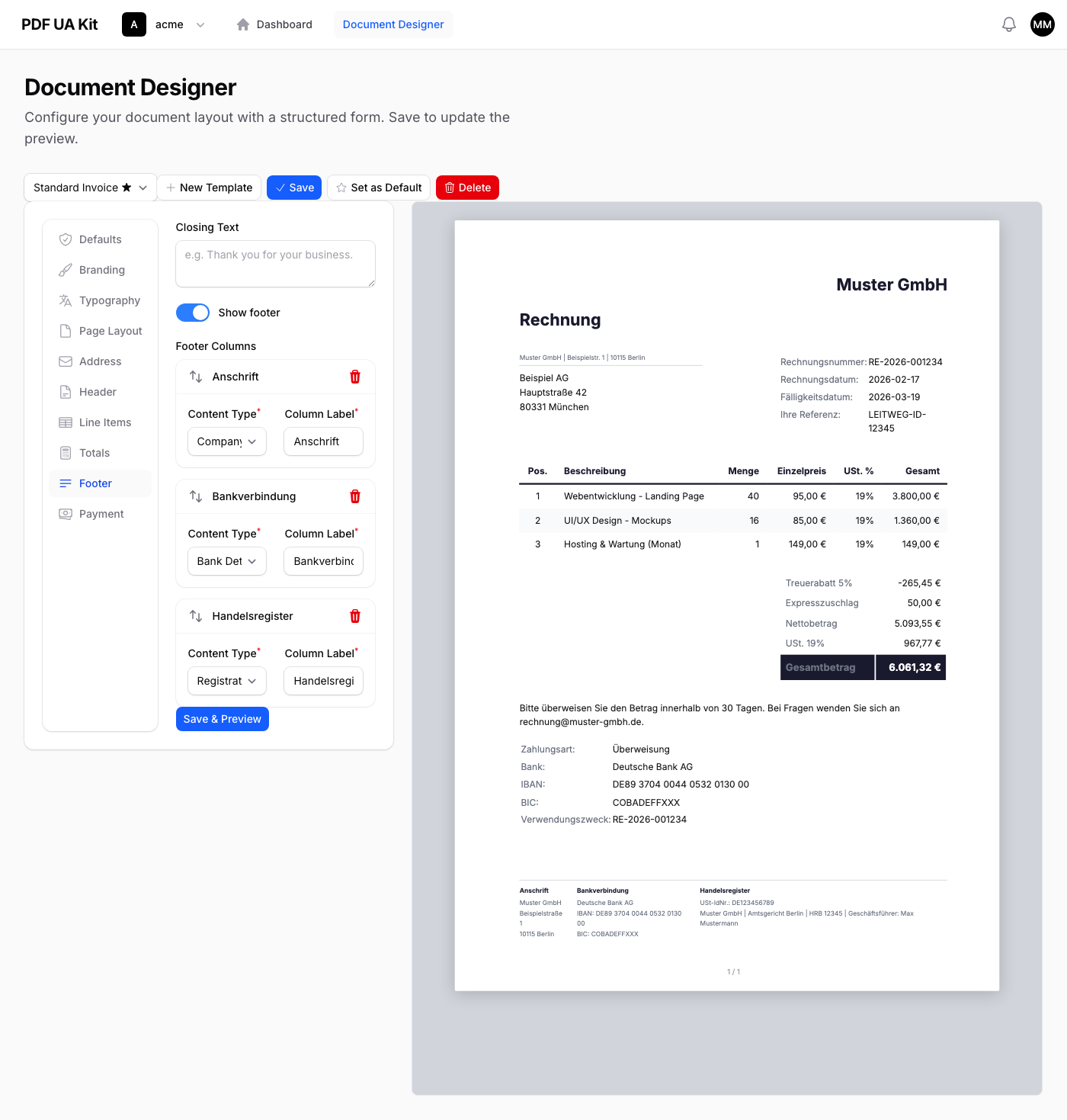
- Closing Text — Optional message before the footer (e.g. "Thank you for your business.").
- Footer Columns — Up to 3 columns with content types: Company Address, Bank Details, Registration Info, or Contact.
- Payment Section — Toggle QR code placeholder, payment terms, and bank details display.
Live Preview
The right side of the designer shows a real-time A4 preview with sample invoice data. The preview simulates page margins, fold marks, and page numbers exactly as they will appear in the final PDF. Click Save to refresh the preview after making changes.
How Templates Are Used
When a document is generated through the API, the template controls the visual design while the API request provides the actual content (buyer, line items, totals). Any fields missing from the request fall back to the values configured in the Defaults tab.