Members
PDF UA Kit is built around teams. A team is your shared workspace — all API tokens, conversion history, and templates belong to a team, not individual users.
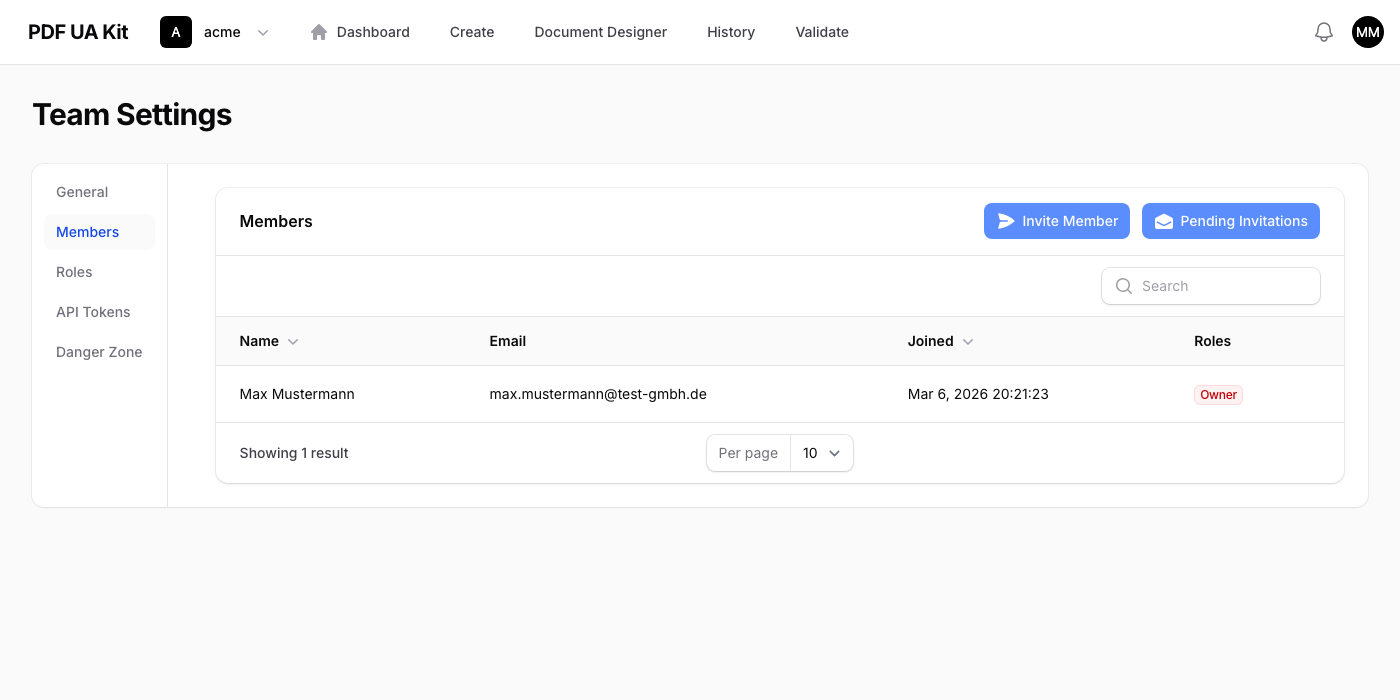
Navigate to Settings > Members to see all team members, their roles, and when they joined.
Inviting Members
Click Invite to add a new member. Enter their email address and select a role. The invitee receives an email with a link to join your team.
- If the person already has a PDF UA Kit account, they can accept the invitation directly.
- If they are new, the invitation link takes them through account creation and joins them to your team automatically.
- Invitations expire after a set period. You can view and manage pending invitations from the members page.
Changing Roles & Removing Members
From the members table, use the action menu on any member row to change their role or remove them from the team. The last owner of a team cannot be removed or downgraded.